Last updated: July 2026 (Shrawan 2083). Field labels and upload limits follow the live portal — verify on your provincial eDLVRS portal while filling.
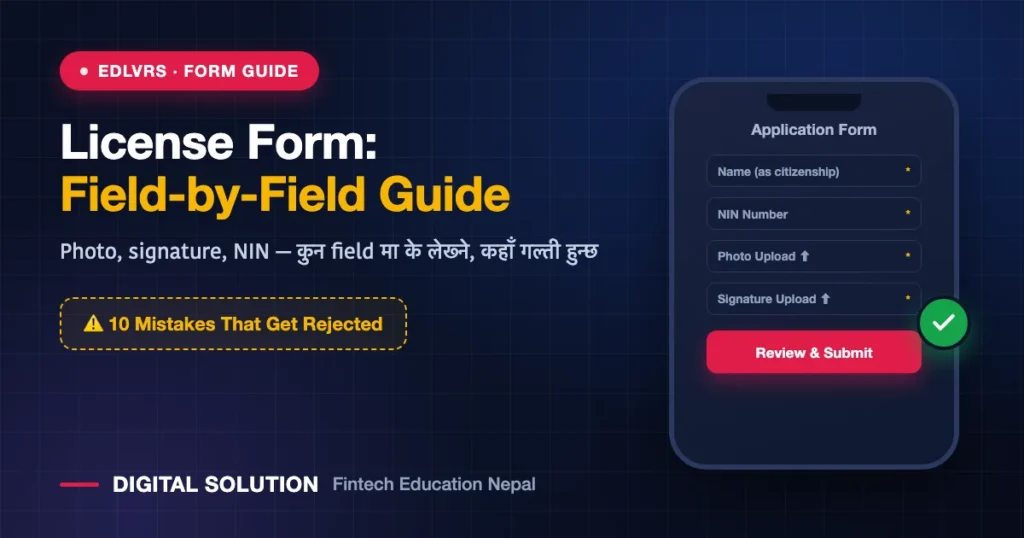
The online driving license form on eDLVRS is not difficult — but it is unforgiving. One wrong citizenship digit, one oversized photo, one mismatched name spelling, and your application bounces at verification after you’ve already burned a precious visit date. This is the field-by-field walkthrough: what each section of the form asks, the exact upload rules that trip people, and the 10 mistakes that cause rejections.
📥 FREE Download: Driving License Complete Checklist (PDF)
Apply गर्नुअघि चाहिने सबै — documents, age, exam format, fees, SMS codes — २ पानाको checklist। Print गरेर टिक लगाउँदै जानुहोस्।
New to the process? Start with the overall journey in our main eDLVRS guide, make sure everything on the documents & eligibility checklist is ready, and Bagmati applicants should read the Bagmati-specific guide first.
Before the Form: Account & Login
Register on your provincial eDLVRS portal with your own mobile number and email, verify the OTP, and set a password you’ll remember — this account follows you through exams, payment and license collection. (Login troubles? Tonight’s post covers OTP and password fixes in depth.)
Section 1: Personal Details
| Field | How to Fill It Right |
|---|---|
| Full name (English) | EXACTLY as on your citizenship — same spelling, same order. “Ramesh Kumar Shrestha” ≠ “Ramesh Shrestha”. |
| Name (Devanagari) | नागरिकतामा भए अनुसार — the counter compares both. |
| Date of birth (BS/AD) | Use the BS date on your citizenship; double-check the AD conversion the portal shows. |
| Citizenship number + district + issue date | Copy from the certificate, don’t type from memory. Format matters. |
| NIN (National Identity Number) | Enter your NID number where asked. Only have enrollment slip? Read NIN vs eNID vs card — the number is what counts. |
| Father/Mother/Spouse name | Match citizenship records — mismatches here cause counter queries. |
| Blood group | Know it before you start; it prints on your license. |
Section 2: Address
Permanent address follows your citizenship; temporary address is where you live now. Select province → district → local level (municipality/rural municipality) → ward. If your municipality was renamed/merged, pick the current official name in the dropdown — old names won’t appear.
Section 3: License Category
Choose the category you’re actually applying for now: A (motorcycle/बाइक), K (scooter/moped), B (car/jeep/van). Applying A and B together is possible where offered, but remember: each category has its own written/trial requirements, and quota for combined slots can be scarcer. Already licensed and adding a category? That’s a different application — category-add guide comes Monday evening.
Section 4: Office & Visit Date
Select your province and transport office, then a visit date from the quota calendar. Dates full everywhere? Use the quota-full fix guide — and never pay anyone for a date.
Section 5: Photo & Signature Upload Rules
- Photo: recent passport-style, plain light background, face straight and uncovered, no cap/dark glasses. Follow the on-screen format (JPG/PNG) and size cap — resize before uploading; blur from over-compression is a rejection reason.
- Signature: sign black-on-white paper, photograph/scan it flat and crop tight. Faint pencil or shadowed photos fail.
- Documents: citizenship front/back readable corner-to-corner. If the preview looks doubtful to you, it will look doubtful to the verifier.
Section 6: Review & Submit
The review screen is your last chance — read every field against the physical citizenship in your hand. After submission you’ll get an application/reference number: save it (screenshot + write it down). You’ll need it for status checks, payment references, and any counter query.
The 10 Most Common Form Mistakes
- Name spelling different from citizenship (the #1 rejection).
- Citizenship number typed with wrong district code or missing digits.
- BS/AD date mismatch — check the auto-conversion.
- Photo over the size limit or heavily compressed.
- Signature photographed at an angle with shadows.
- Wrong local-level selected (old municipality names).
- Someone else’s mobile number used for OTP.
- Wrong category selected “just to get a date” (creates problems later — see quota guide instead).
- Closing the browser before the confirmation screen.
- Not saving the application number.
FAQ
Can I edit the form after submitting?
Self-service editing is limited once submitted. Small errors may be correctable at the counter on visit day; serious mismatches can require re-application. Fill slowly, submit once.
Which browser works best for the eDLVRS form?
An updated Chrome/Edge/Firefox on desktop is smoothest for uploads. Mobile works, but file resizing and dropdowns are easier on a computer.
My name is spelled differently on citizenship and NID. What do I do?
Fix the mismatch first — the form pulls against official records. Our document correction guide covers the process.
Do I need the health check before or after the form?
The doctor-verified health step is part of the current flow — see how the online health check portal works so it doesn’t block you at the office.
Form भर्दा अड्किनुभयो? Screenshot पठाउनुहोस् — Digital Solution को team ले कुन field मा के मिलेन भनेर बुझाइदिन्छ। Site को WhatsApp (+977 9766597181) बाट सम्पर्क गर्नुहोस्।
Disclaimer: Digital Solution Nepal is an independent educational/digital-service assistance website, not a government body. Field labels, limits and rules follow the live official portal (your provincial eDLVRS portal) — always verify there while applying.

Rabin Paudel
Rabin Paudel is the Founder of Digital Solution, a Content Creator, and an AI Trainer. He shares practical and easy-to-understand content on Artificial Intelligence, Digital Literacy, Online Services, FinTech, and Technology. His mission is to make technology simple, accessible, and useful for everyone.
View all posts by Rabin Paudel →
Pingback: eDLVRS Login & OTP Problems: 9 Fixes