
As of 24 October 2026 (7 Kartik 2083). Checked against the Nepal Stock Exchange (NEPSE) FAQ and broker list, a broker TMS login page, the CDS and Clearing Limited (CDSC) settlement procedure, the connectIPS transaction limit page and Securities Board of Nepal (SEBON) press releases. We did not log in to any trading account.
Your TMS login NEPSE account is the screen where you actually buy and sell shares after an IPO allotment lands in your demat. TMS stands for Trade Management System. Each licensed broker runs its own copy, and NEPSE’s FAQ says the broker manages and operates the TMS its clients use.
This guide walks through a first trade from start to finish: finding your broker’s TMS address, logging in, loading collateral, placing a buy order, and what happens on settlement day. It also covers selling, the charges you will see on your bill, and where to complain.
Quick answers
| Question | Answer |
|---|---|
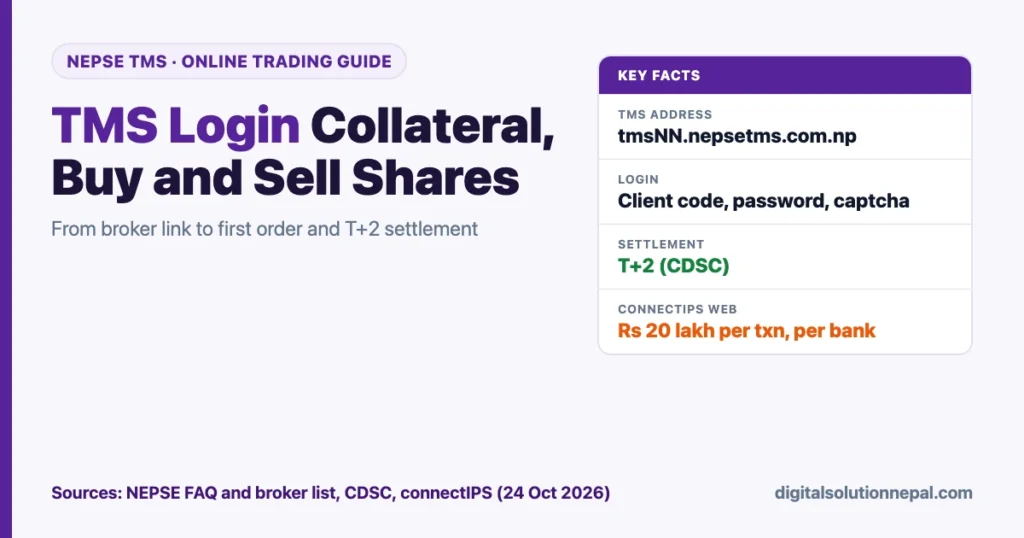
| TMS address | tmsNN.nepsetms.com.np, where NN is your broker number (broker 1 is tms01) |
| Login fields | Client code or username, password, captcha |
| Who fixes TMS problems | Your broker first; NEPSE only if the broker does not resolve it |
| Forgot password | “Forgot Password?” on the login page, then username and registered email |
| Load collateral | Through the payment option inside TMS, such as connectIPS |
| connectIPS web limit | Rs 20,00,000 per transaction and per day, per bank |
| Settlement cycle | T+2 (trade day plus two days), per CDSC |
| Broker complaints | NEPSE surveillance: surveillance@nepalstock.com |
What you need before the first TMS login
You need four accounts that link to each other:
| Account | Who gives it | Used for |
|---|---|---|
| Demat account (BOID) | A depository participant (DP) registered with CDSC | Holding your shares |
| MeroShare | CDSC, through your DP | Viewing holdings, IPO applications |
| Bank account | Any bank or financial institution | Paying for shares, receiving sale money |
| TMS account | A licensed broker | Placing buy and sell orders |
CDSC’s account opening page says you can open a demat account with any DP you choose, and even keep more than one. The TMS account is separate and comes from a broker. The broker login page has a “New Registration (Online Trading Account Opening)” link for new clients.
NEPSE’s FAQ lists the errors people hit at registration:
| Error | What NEPSE says to do |
|---|---|
| No email after registration | Ask the broker whether your email was entered correctly; check the spam folder |
| “Duplicate BOID” | Email the broker your BOID and client code or name; close the old account at the broker your BOID is already mapped to |
| Citizenship details do not match, or “Duplicate Citizenship” | Email the broker your BOID, client code, correct citizenship number, issue place and issue date in AD, and ask for your client ID |
How to find your broker’s TMS login address
NEPSE publishes a broker list at nepalstock.com/brokers with a “TMS Link” column. On our check date, broker 1 (Kumari Securities) used tms01.nepsetms.com.np and broker 3 (Arun Securities) used tms03.nepsetms.com.np. The pattern is the same for every broker: the number after “tms” is the broker number.
SEBON also keeps a list of licensed stock brokers under Intermediaries on sebon.gov.np. Check that a broker appears on both lists before you open an account. Type the TMS address yourself or open it from the NEPSE list. Do not log in from a link sent in a message.
TMS login NEPSE: step by step
- Open your broker’s address, for example https://tms01.nepsetms.com.np/login. The page heading shows “Stock Broker No” so you can confirm you are on the right broker.
- Enter your client code or username.
- Enter your password.
- Type the captcha. An audio option and a reload button are next to it.
- If the system asks for a one-time password, enter it. The login page contains an OTP field.
- Log in, then check your name and client code on the dashboard.
The login page lists three safety tips: do not save your password, do not share your login, and log out before closing the browser.
If you forget the password, NEPSE’s FAQ says to click “Forgot password” on the login page, enter your username and registered email, then open the reset link sent to that email.
How to load collateral in TMS
Collateral is money you place with your broker so TMS lets you buy. Without it, buy orders are usually blocked or limited.
- Log in to TMS.
- Open the fund or collateral section and choose to load collateral.
- Enter the amount.
- Pick the payment option. connectIPS is the bank-to-bank route; you will be sent to the connectIPS login to choose a linked bank account.
- Approve the payment and return to TMS.
- Check that your collateral and buying limit have updated before you place an order.
Menu names differ slightly between broker TMS versions, so look for “Collateral” or “Fund Management”. NEPSE’s FAQ adds that collateral limit management is handled through a NEPSE manual for brokers, and that technical problems go to NEPSE’s system operations branch through your broker.
connectIPS publishes its own limits. These apply per user per bank, and your bank may set lower ones:
| connectIPS platform | Per transaction | Transactions per day | Per day |
|---|---|---|---|
| Web | Rs 20,00,000 | 10 | Rs 20,00,000 |
| Mobile app | Rs 2,00,000 | 20 | Rs 2,00,000 |
| Night, web (9 pm to 7 am) | Rs 2,00,000 | 5 | Rs 10,00,000 |
Our explainer on the Nepal Clearing House and connectIPS covers how these payments move between banks.
Collateral maths for a first order (our calculation)
Brokers decide how much buying limit they give against your collateral, and the ratio is not the same everywhere. The safe way to plan is to treat your limit as equal to the cash you loaded, unless your broker tells you otherwise in writing.
| Item | Example |
|---|---|
| Shares you want | 20 units |
| Limit price | Rs 500 per unit |
| Order value | 20 x Rs 500 = Rs 10,000 |
| Charges (commission, SEBON fee, DP charge) | Shown on your bill; keep a small buffer |
| Collateral to load | Order value plus a buffer, for example Rs 10,200 |
Our calculation, for illustration only. Charges are a small fraction of the order value. If your bill is higher than your collateral, the broker will ask you to pay the difference before settlement.
Placing your first buy order
- Search the company by its symbol, for example NABIL or NTC.
- Choose Buy.
- Enter the quantity (number of units).
- Enter your limit price, the most you are willing to pay per unit. Stay within the day’s allowed price range that TMS shows.
- Review the order value against your collateral limit.
- Submit and check the order book.
NEPSE’s FAQ explains order status. An order stays open until it matches. It becomes partially traded if only some units match, and completed when all units match. Completed and cancelled orders cannot be edited. If an open order will not edit, it may already be complete with the status lagging, so check the trade book.
NEPSE runs a pre-open session before regular trading. ShareSansar reported that on 15 September 2026 the pre-open session ran from 10:30 am to 10:45 am and regular trading began at 11:00 am. Check the NEPSE website for the current session times. NEPSE’s own price ticker on our check date was stamped 3:00 pm for the last session.
What happens after you buy: T+2 settlement
CDSC’s settlement procedure says settlement runs in a T+2 cycle, where T is the trade day:
| When | What happens (per CDSC) |
|---|---|
| T to T+1 | Base price entry for capital gains tax |
| T+2 | Funds and securities pay-in |
| T+2 | Capital gains tax calculation |
| T+2 | Shortage and close-out calculation |
| T+2 | Funds and securities payout, and commission credit |
For a buyer, this means you pay the broker’s bill before pay-in on T+2, and the shares reach your demat at payout. If you cannot pay, the broker can use your collateral. NEPSE’s FAQ says that if your MeroShare and TMS holdings do not match, contact your broker.
How to sell shares in TMS
- Confirm your holding in MeroShare first. NEPSE’s FAQ warns that holdings are updated only in the CDSC system, so the TMS figure can differ during trading. Never place a sell order for more shares than you hold.
- In TMS, search the symbol, choose Sell, and enter quantity and limit price.
- Submit and watch the order book until the order is completed.
- Transfer the sold shares to your broker through MeroShare before pay-in. This step is usually labelled EDIS (electronic delivery instruction); ask your broker for its exact deadline.
- Make sure your purchase price is entered in MeroShare, because CDSC uses it as the base for capital gains tax.
The sale money, after charges and tax, is paid by the broker after settlement. NEPSE’s FAQ says late payment from a broker can be reported to NEPSE’s surveillance branch.
Charges on your TMS bill
We list only what we could confirm from SEBON, NEPSE or CDSC pages on our check date. Where a rate was not confirmed on those sites, we say so rather than repeating figures from other websites.
| Charge | Who sets it | Rate confirmed on an official page? |
|---|---|---|
| Broker commission | SEBON sets the slabs | Not confirmed; read the rate on your broker’s bill |
| SEBON fee | SEBON | Not confirmed; shown on your bill |
| DP charge on sale | Your DP, under CDSC rules | Not confirmed; ask your DP |
| Capital gains tax on sale | Income Tax Act and Finance Act; calculated by CDSC at T+2 | Yes for the timing (CDSC); see our share capital gains tax guide for rates |
Ask your broker for the current commission schedule in writing, and compare it with the contract note you receive after each trade.
Broker rules are changing in 2083
SEBON issued a press release dated 13 Ashwin 2083 (29 September 2026) saying it had implemented the Stock Broker Business Strengthening Policy, 2083. The policy proposes four broker classes: stock dealer, full-service broker, trading broker and specialised broker. It gives existing brokers a transition period with gap assessment and compliance plans.
Our reading: nothing in the press release changes how you log in or load collateral today. Over time, check which class your broker falls into, especially if you plan to use margin or other services that will need separate approval.
TMS login NEPSE problems and complaints
| Problem | Contact |
|---|---|
| Login, order, collateral or bill issue | Your broker first (NEPSE FAQ) |
| Broker not paying on time, or other broker complaint | NEPSE surveillance branch, surveillance@nepalstock.com, extension 142 or 157 |
| NEPSE system or website issue | support@nepalstock.com, extension 126 or 144 |
| Complaint to the regulator | SEBON grievance hotline 01-5254076, gunaso@sebon.gov.np, toll free 1660 01 44433 |
When you contact support, NEPSE says to give your BOID, client code and broker name or number. Keep your TMS password private; our report on the NEPSE data hub ransomware attack shows why account security matters in Nepal’s market.
Need help opening TMS and making your first trade?
Digital Solution helps you open demat, MeroShare and TMS accounts, link connectIPS and understand your first contract note. शेयर कारोबार सुरु गर्न हामी सहयोग गर्छौं।
Frequently asked questions
What is the TMS login NEPSE address for my broker?
It follows the pattern tmsNN.nepsetms.com.np, where NN is your broker number. Find your broker and its TMS link on NEPSE’s broker list at nepalstock.com/brokers.
Can I use TMS without a demat account?
No. Your TMS account is linked to your BOID (demat number), and NEPSE’s registration errors such as “Duplicate BOID” show that the two are matched at sign-up.
How long does it take for bought shares to reach my demat?
CDSC runs settlement on T+2, so shares are paid out on the second day after the trade, provided you have paid the broker.
Why does TMS show different holdings from MeroShare?
NEPSE says holdings are updated only in the CDSC system and the TMS figure can differ during trading. Trust MeroShare, and contact your broker if the gap stays.
Can I load collateral with a mobile wallet?
connectIPS is the bank route covered here. Other payment options depend on what your broker’s TMS shows on its collateral screen.
Conclusion
A first trade is simpler once the pieces are in place: a demat and MeroShare account from a DP, a TMS account from a licensed broker, and a linked bank account for connectIPS. Use the TMS login NEPSE address from the official broker list, load enough collateral to cover the order plus charges, and follow your order to completion. Then watch the T+2 settlement and check MeroShare before you sell.
Sources
- Nepal Stock Exchange, Frequently Asked Questions (opened 24 October 2026): https://www.nepalstock.com/faq
- Nepal Stock Exchange, Brokers’ List with TMS links (opened 24 October 2026): https://www.nepalstock.com/brokers
- NEPSE TMS login page, broker 1 (opened 24 October 2026): https://tms01.nepsetms.com.np/login
- CDS and Clearing Limited, Settlement Procedure (opened 24 October 2026): https://cdsc.com.np/cmsettlementprocedure
- CDS and Clearing Limited, Account Opening (opened 24 October 2026): https://cdsc.com.np/accountopening
- connectIPS, Transaction Limit (opened 24 October 2026): https://connectips.com/transaction-limit
- Securities Board of Nepal, Stock Brokers list (opened 24 October 2026): https://www.sebon.gov.np/intermediaries/stock-brokers
- Securities Board of Nepal, press release on the Stock Broker Business Strengthening Policy, 2083 (13 Ashwin 2083): https://www.sebon.gov.np/uploads/2026/09/29/BOrEtjsCZqLF7piUQNt2gf3krAshHzargRGlwZsi.pdf
- ShareSansar, NEPSE index gains in pre-open session (15 September 2026): https://www.sharesansar.com/newsdetail/nepse-index-gains-8605-points-in-pre-open-session-today-2026-09-15
Disclaimer: This guide explains how the trading system works and is not investment advice; Digital Solution is not a broker, so confirm charges and limits with your own broker before trading.

Rabin Paudel
Rabin Paudel is the Founder of Digital Solution, a Content Creator, and an AI Trainer. He shares practical and easy-to-understand content on Artificial Intelligence, Digital Literacy, Online Services, FinTech, and Technology. His mission is to make technology simple, accessible, and useful for everyone.
View all posts by Rabin Paudel →